



Setting up your scanner is a 3-part process:-
1. Pairing your scanner with your phone/tablet
Prior to the event you will have been given:-
- a Netum C740 bluetooth scanner with charge cable
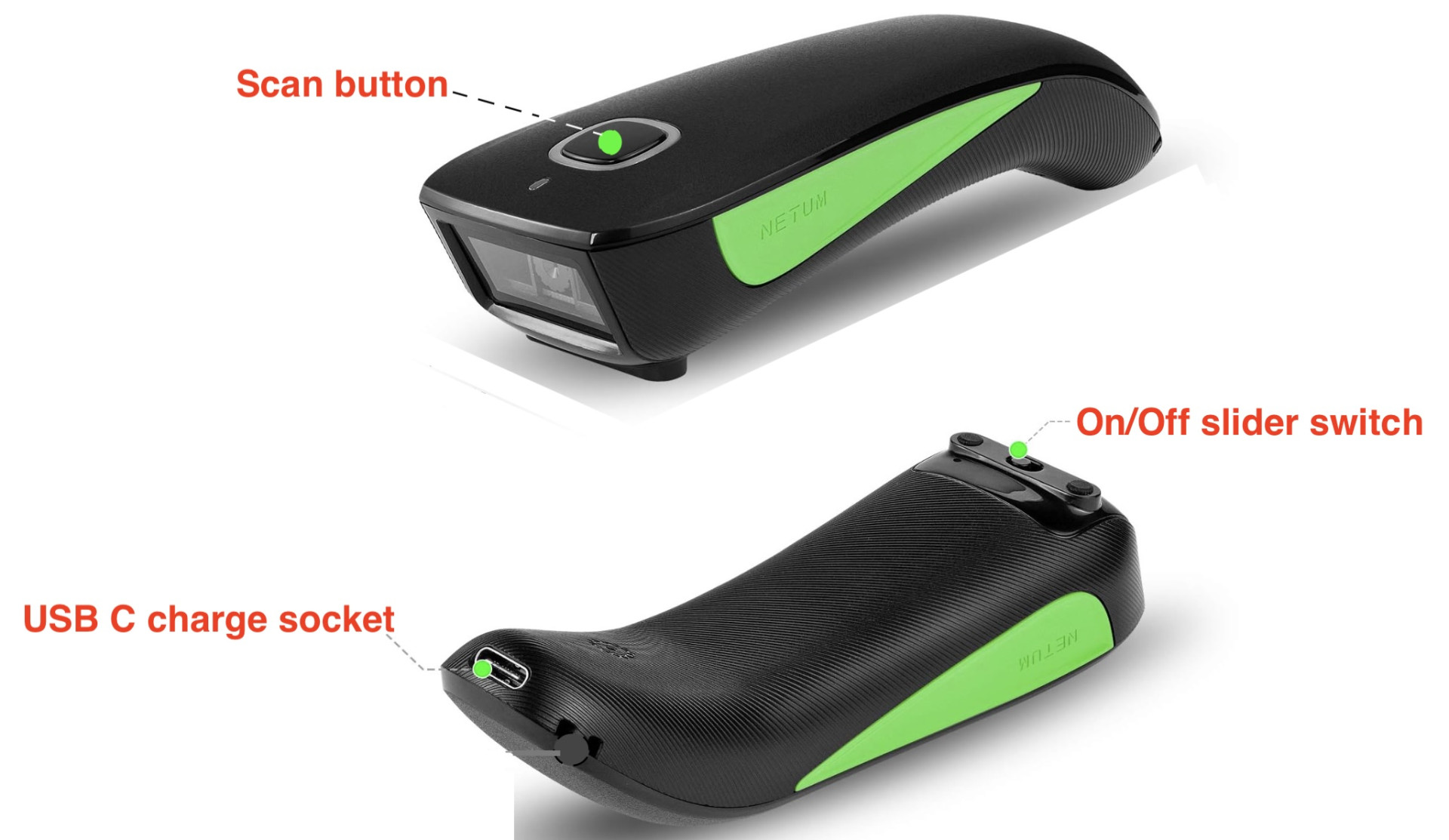
- a power bank
- a unique, 12-digit access key for your CP - looking something like this A23D-RTD4-6Y4Q
- and (possibly) a Weatherwriter and manual backup sheets for your checkpoint(s).
If you have acted as a PACER marshal before then you should firstly 'forget' any reference to 'C barcode scanner' you might have in the bluetooth list on your device. Whilst your current scanner might appear to pair without doing this it will not scan properly. So 'forget' any previous pairings and start afresh.
Pairing your scanner with your chosen recording device - smartphone or tablet (with installed SIM) - is done in much the same way as you would pair any other accessory. Open bluetooth settings, turn on the scanner (small slider switch beneath its head), press and release the scan button and wait until "C barcode scanner" appears. Tap to connect. In future whenever you turn on the scanner and squeeze the scan button it will automatically connect.
2. Testing your setup locally
Checking your pairing/scanning setup - remember, your scanner is nothing more than an alternative to your keyboard so you can easily check your scanner operation by opening up a new text document, eg a new page in Word, a new Email, a new Note etc and scanning barcodes found on books, magazines, bean cans etc including the barcodes on your 'PACER comms check' card. When scanned, all should appear in your document just as though you had typed them - but importantly, typo free! This is a useful exercise in itself since it gives you practice in honing your scanning technique!
3. Testing your setup with PACER
Once you have the access key for your CP you can test your setup with PACER:-
3.1 From your browser** log-in to the CP Admin page at www.ldwa.org.uk/admin_clubs_new/checkpoints/checkpoint_login.php,
Select Surrey, type in the access key and check 'Remember Me" :-
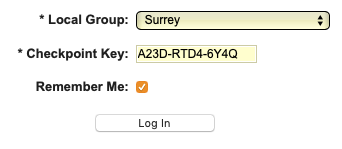
Before going any further, add a bookmark to this page. This will facilitate an easy return.
** for Apple devices use Safari and for Android use Firefox. There are known issues with all versions of Chrome so please don't use it.
3.2 Once you have bookmarked the page tap 'Log In'.
The resulting screen will display the Event Summary:-
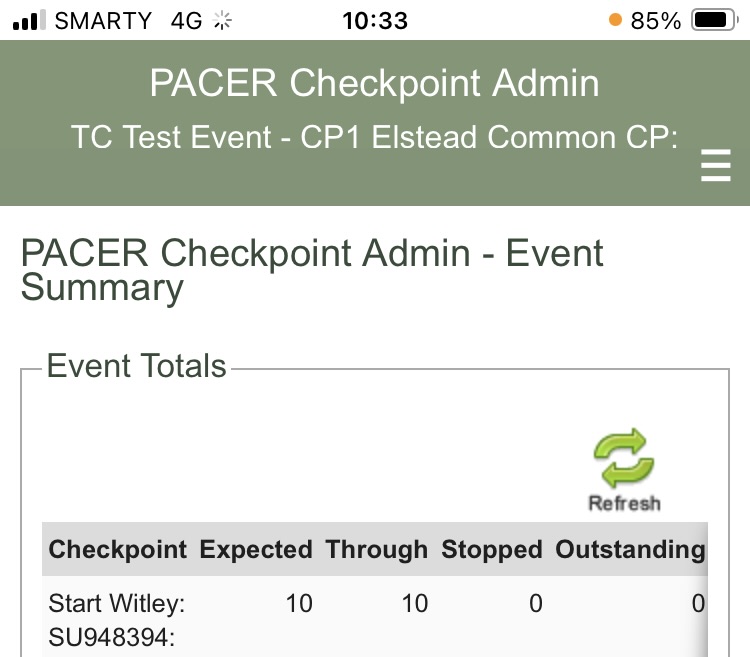
The event's name & the name of your CP appears at the top of this screen.
3.3 From the menu  select 'Scan Times - Mobile' to go to the recording screen:-
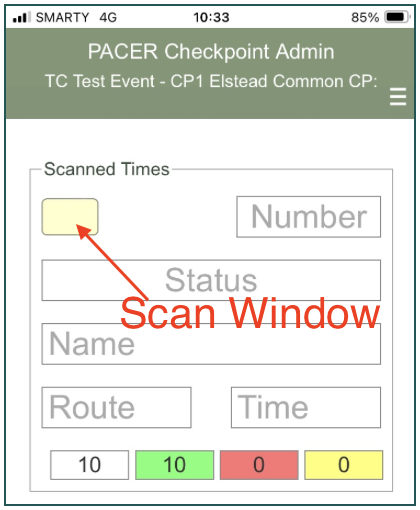
Ensure that the flashing cursor is in the Scan Window. If it's not then just tap the window to re-focus it there.
Finally, test your connection to PACER by scanning the barcode on the card attached to your scanner. You should get an error message 'Invalid participant...'. If so all is well and you are good to go. If repeating then scan the BCs alternately since PACER ignores repeated scans of the same BC.