



On-the-day scanning at the Checkpoint
Before you leave home do make sure everything is charged - phone/tablet, scanner & power bank.
At the CP:-
- use the saved bookmark to Login to your CP
- from the menu select 'Scan Times - Mobile'
-
ensure that the flashing cursor is in the Scan Window*. If it is not you will NOT be able to record - simply tap the window to re-focus it there 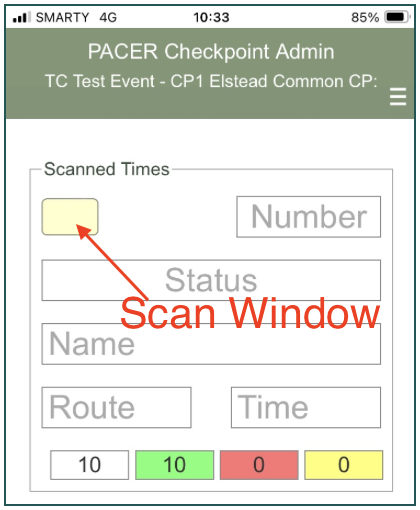
- test your connection by scanning the test barcode attached to your scanner. A response of 'Invalid participant...' indicates you have connection and you are ready to record
- consider extending the time before your device goes to sleep (device settings) to reduce potential distractions
*If, for any reason you touch the screen, then the flashing cursor will likely disappear from the Scan Window. Simply tap the window to bring it back into focus.
As entrants arrive:-
- make it routine to check that the cursor is present in the Scan Window before starting to scan. If not tap the window to focus it there. The cursor not being present in the Scan Window is THE most common cause of mis-scans
- ask for their card (without it they can't be recorded)*
- scan the card and wait until the screen updates itself to the name on the card - a visual indication of a successful recording. Your screen should update within a second or two ** so just wait - don't be pressurised by the queue and don't worry if you happen to scan the card more than once - PACER only sees the first scan
- in bright sunshine its a good idea to shade the card with your body to give a more successful scan
- if you are working with a manual recorder who is keeping a parallel paper record, call out the number displayed on your screen to the manual timekeeper BEFORE returning the card to the entrant. Manual recorder, you should ONLY listen for the voice of your PACER recorder - entrants' are notorious for mis-remembering their numbers.
- if you are working by yourself then only revert to paper if PACER gives issues**
- should an entrant wish to RETIRE at your CP, scan the card, mark it with 'Ret' and RETAIN it. Call Event Control to arrange pick-up transport and ask them to set the entrant's status to 'Retired'. When the transport arrives give the card to the driver.
- if you get a "Entrant not expected at this CP" simply tap OK and call it in to event control.
Sequence - "can I see your card please" - take card - scan it - wait for response then call out number on screen to manual recorder - return card
* if an entrant has lost their card note down their name and time and, when time permits, text or phone this to event control - they will enter the details into PACER. DO NOT take the entrants word for their number - they often get it wrong!
** if PACER becomes unresponsive for more than say 10 seconds, continue recording manually flagging those entrants that didn't get scanned. When time permits phone these numbers and times back to Event Control. Meantime try scanning the two test numbers on your test card. You will know when the connection resumes since you will get the 'Invalid participant...' response. Now you can go back to scanning.
Finally, if you move to a subsequent checkpoint you will need to logout of the current one then login with the Key for the new checkpoint.